How to use the Workflow Editor
The workflow editor gives you two powerful ways to build and manage your workflows:
You can switch between these two modes at any time. Changes made in one are instantly reflected in the other, allowing you to use the best tool for the task at hand.
At the top of the editor pane, you will find two tabs: Visual Editor and Code Editor. Simply click the tab for the mode you want to use.
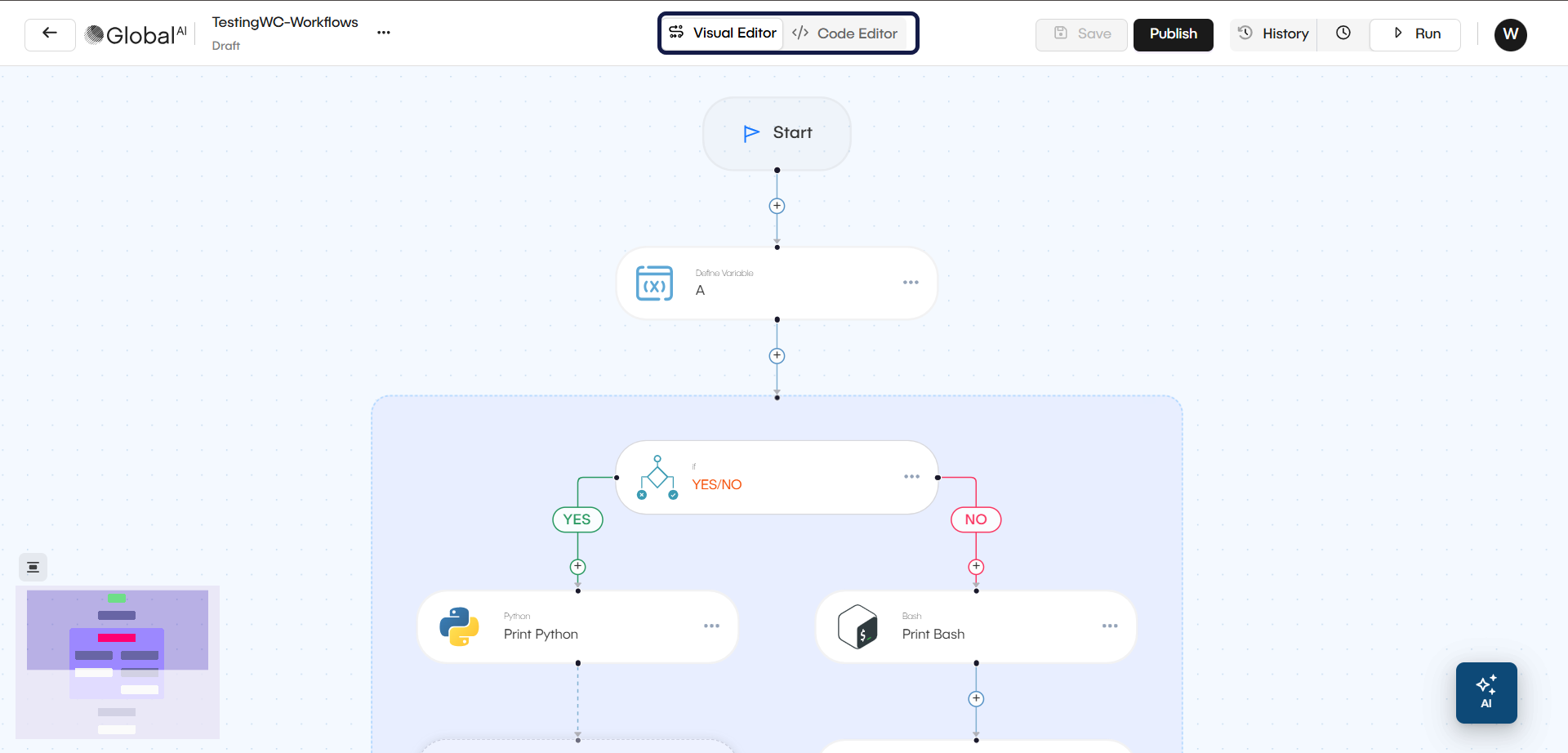
The Visual Editor
The Visual Editor lets you build your workflow graphically. Each trigger and action in your workflow is represented as a node on a canvas.
This mode is ideal for quickly sketching out new workflows, understanding the flow of logic at a glance, and making simple configuration changes.
Key actions
The Visual Editor provides several key actions for working with nodes.
- Add a node: Adds a new node (like an action or variable). To do this, click the + button > Add in the workflow section where you want to place it.
- Configure a node: Opens the Configuration Panel or a node when you click it. In this panel, you can set parameters, add authentication, and define the node's behavior.
- Move node: Updates the node's position and connections within the workflow canvas.
- Test until: Executes the workflow only up to this specific node. This allows you to check the output at that particular step.
- Select in Editor: Opens the exact location for the node in the Code Editor.
- Delete a node: Removes the selected node and its connections from the workflow.

The Code Editor
The Code Editor displays the raw configuration of your workflow (often in a YAML or JSON format). This is the "source of truth" that the Visual Editor is building behind the scenes.
This mode is powerful for advanced users and is especially useful for:
- Copying and Pasting: Provides the fastest way to add a workflow from documentation or duplicate a complex step.
- Bulk Editing: Enables quick changes to values (like a variable name) across many steps at once using find-and-replace.
- Complex Configurations: Simplifies writing complex data mappings or expressions that may be difficult to build in the visual editor.
Quick comparison between editors
Here is a quick comparison to help you decide which editor to use for different tasks.
| Task | Recommended Editor | Why? |
|---|---|---|
| Building a new workflow from scratch | Visual Editor | It's fast, intuitive, and helps you see the flow. |
| Understanding an existing workflow's logic | Visual Editor | The graphical view makes it easy to follow the path. |
| Using an example from documentation | Code Editor | Just copy the example code and paste it in. |
| Configuring a single step | Visual Editor | The form-based configuration panel is simple and clear. |
| Making the same change in 10 different steps | Code Editor | Use "Find & Replace" to edit all at once. |
| Backing up or sharing your workflow | Code Editor | Copy the entire text to save it or send it to a colleague. |
Related articles
Now that you understand the features of both editors, here are some logical next steps:
Nodes Concept
Understand the concept of Nodes, which are the fundamental building blocks for creating automations.
Create your First Workflow
Follow a step-by-step tutorial to build and run a simple 'Hello World' workflow.
Create Reusable Modules
Discover how to build reusable components that can be shared across your automations.