Add Nodes to a Workflow
Nodes are the fundamental building blocks of a workflow. Each node represents a specific action or operation in your automation, such as running a script, making an API request, or creating a loop. You add and configure nodes using the visual Workflow Editor.
Add a Node
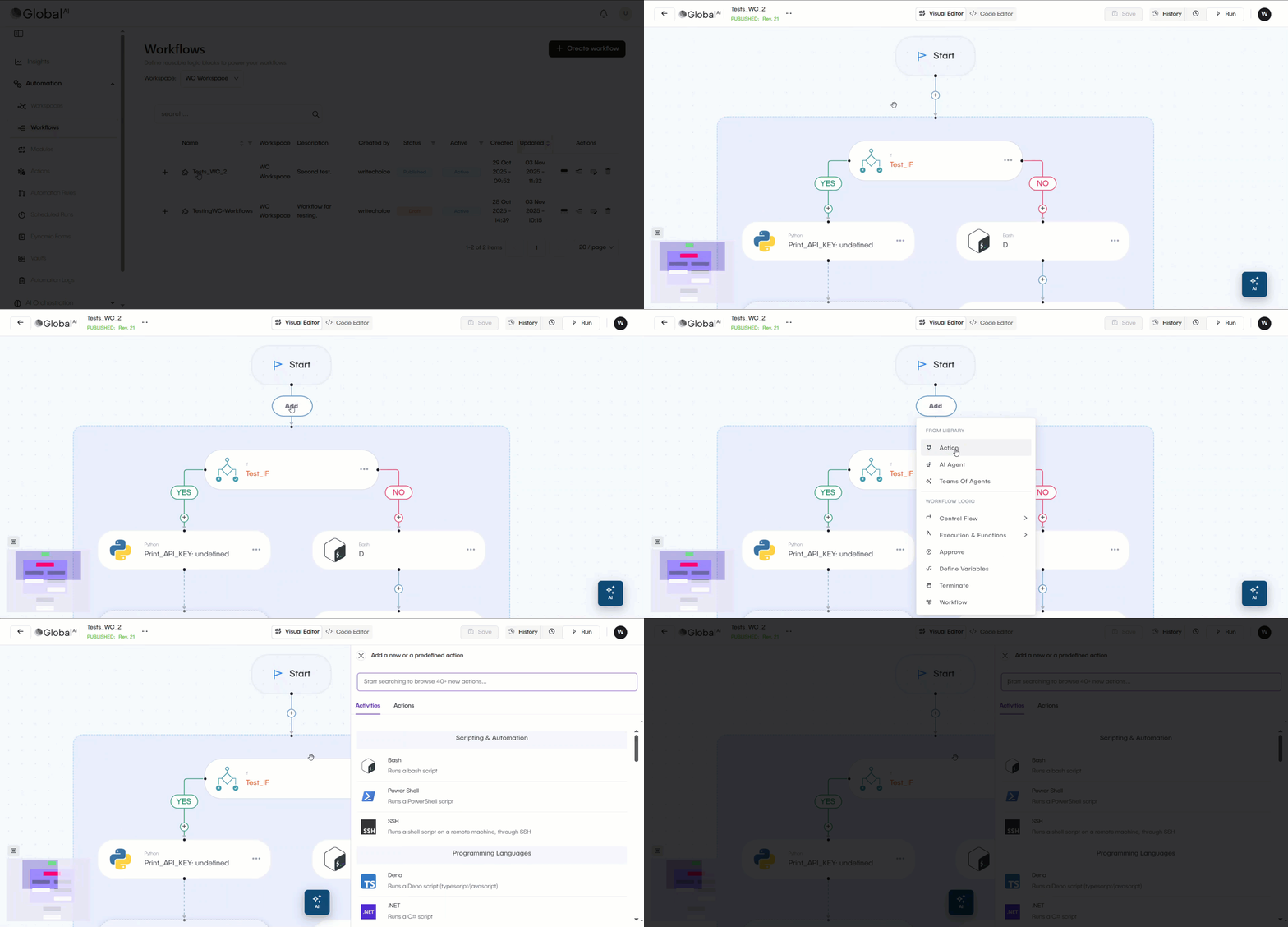
Workflows are built by adding nodes sequentially. You can add a new node at the end of the flow or insert one between existing nodes.
- Navigate to Automation > Workflows > click on your workflow to open it.
- Hover over the location where you want to add the node. Click the + icon. A menu opens showing all available node types (such as Actions, Control Flow, or AI Agents).
- Select the node you want to add. The node is added to the canvas, and its configuration panel opens.
Configure a Node
Every node you add must be configured. To do so, just click on it. While the specific settings change for each node type, some configurations are common.
- Name: You must give the node a unique name. This name is used to access the node's output data (like
stdoutor JSON) in later steps. - Node-Specific Settings: Each node has different settings. For example, an Action node requires you to write a script, while a For Loop node requires an array to iterate over.
- Condition: You can use the optional When field to set a condition using the platform's expression language. The node will only run if this condition is true. If the condition is false, the node is skipped, and the workflow continues to the next step.
Connect Nodes
The visual Workflow Editor handles connections automatically. Nodes are executed sequentially from top to bottom.
Data flows through this sequence. Any node can access the output variables from any node that was executed before it by using that node's name.
Use the Code Editor
While the visual editor is the primary way to build workflows, you can also manage nodes using the Code Editor. You can switch to the Code Editor view to see the underlying YAML definition of your workflow.
This view is helpful for advanced tasks, such as copying, duplicating, or moving large sections of your workflow logic.
Related articles
Now that you know how to add nodes, you can explore some of the key features you can build into your automations.