Manage Knowledge Bases and Vector Databases
In GlobalAI, the Knowledge Base acts as the agent's library. It helps the agent access external, private data to answer questions. This way, responses stay grounded in your specific information instead of only general knowledge.
Understanding storage options
Before configuring your agent, it's critical to choose the right storage strategy. You can connect to an existing database infrastructure or create a temporary one for specific workflow executions.
| Feature | Permanent (Existing Vector DB) | Temporary (File-based) |
|---|---|---|
| Examples | Qdrant, Pinecone | ChromaDB, LanceDB, SQLite-style |
| Best For | Centralized data accessed by many agents over time. | Single executions where data is only relevant to that specific task. |
| Data Source | Pre-indexed external servers. | Files (PDF, CSV) or URLs ingested on the fly. |
Add a knowledge base
Follow these steps to configure a knowledge source for your AI Agent.
1. Access agent settings
- From the AI Agents dashboard, click the Edit button (pencil icon) on the specific agent card.
- Select the Knowledge tab on the sidebar.
- Expand the Select a knowledge type to add dropdown to see a list of available databases options.
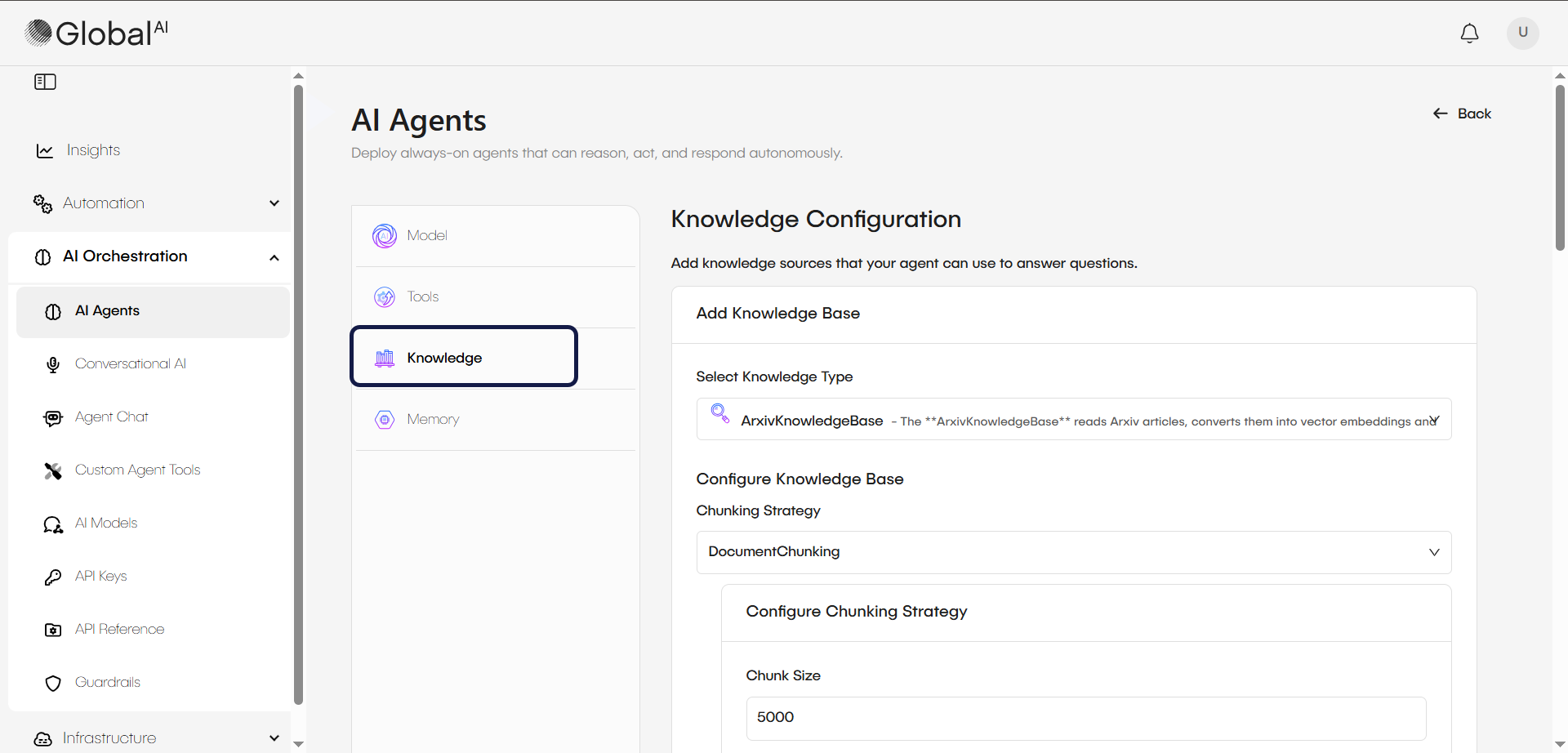
2. Select and configure the knowledge type
Choose one of the following configuration paths based on your requirements:
Option A: Connect to an existing vector database
Use this option if your company already maintains a vector database, for example Qdrant, with indexed data.
- Select: The specific Knowledge Base provider from the list.
- Configure: Enter the specific Vector Db Settings (Host, API Key, Collection Name).
Option B: Configure a temporary knowledge base
Use this option to have the agent read specific files or websites just for the current task. The system will create a temporary vector file for the duration of the execution.
- Select: A source type such as PDF, CSV, DOCX (Word documents), or Website.
- Configure:
- For Files (File Ingestion): Enter the File Path pointing to the location in the working directory (for example,
/working_dir/manual.pdf). You can add more paths if the agent needs to read additional documents. - For Websites (Web Ingestion): Enter the target web address. Set the crawl depth to control the volume of data gathered by limiting how many levels of links the scraper follows from the original address.
- For Files (File Ingestion): Enter the File Path pointing to the location in the working directory (for example,
3. Save changes
Once you have configured the source details:
- Review your chunking strategies or specific parameters.
- Click the + Add Knowledge Base button to complete the addition.
- Click Update Agent to save the entire agent configuration.
Related articles
Now that you know how to manage knowledge bases for your AI Agents, you might want to learn more about:
Understand AI agents
Learn the core concepts behind AI agents, including their components and how they function within GlobalAI.
How to Use an AI agent in a Workflow
A step-by-step guide to building and deploying AI agents in GlobalAI.
Session Management and Memory
Learn how AI Agents retain conversation context, share memory across workflows, and audit session logs in GlobalAI.