How to Add an AI Model
In the GlobalAI platform, you can add and configure different AI models for your AI agents. This customization helps you tailor the AI capabilities to match your specific use cases and requirements.
Add an AI model
To add an AI model, follow these steps:
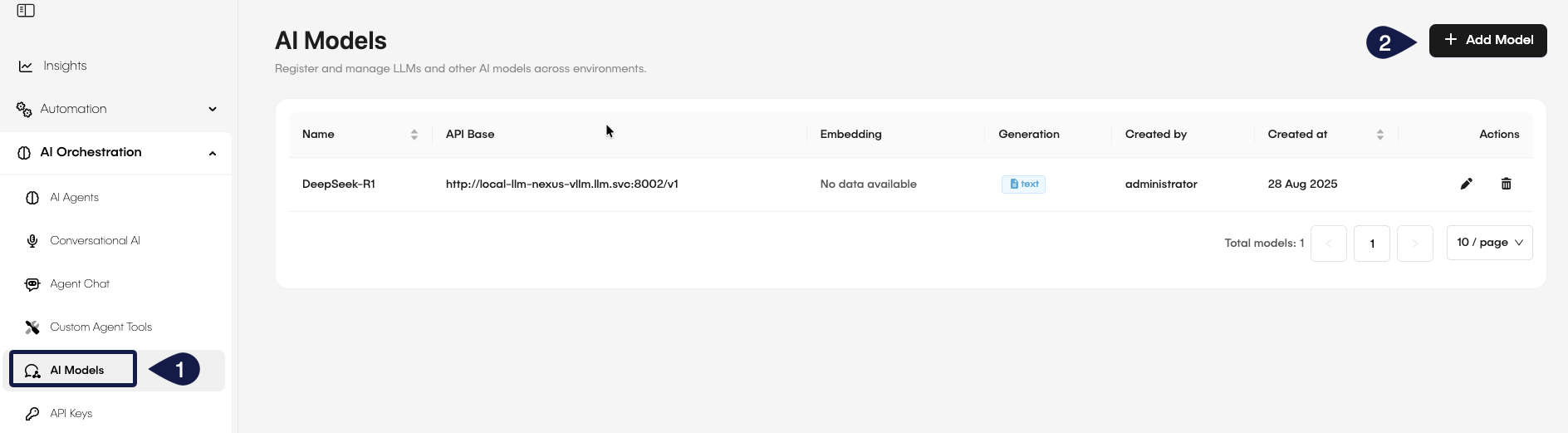
- On the GlobalAI dashboard, access the AI Orchestration > AI Models on the sidebar.
- On the AI Models page, click on the + Add Model button.
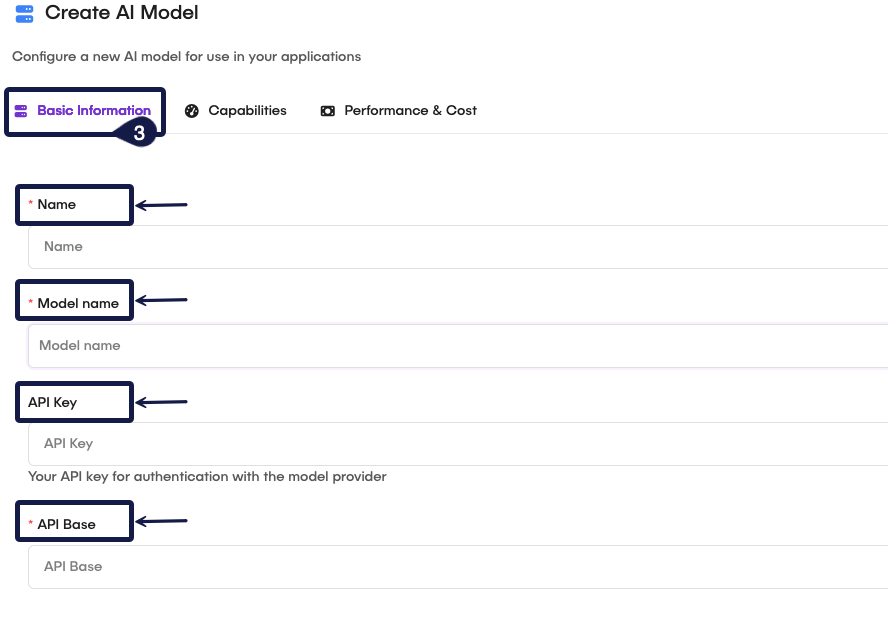
- On the Create AI Modal form, select the Basic Information tab and fill in the details of the AI model you want to create:
- Name: Enter a name for your AI model.
- Model Name: Enter a name for the model you are adding (for example,
gpt-4orgpt-3.5-turbo). - API Key: Provide the API key required to access the AI model.
- API Base: Specify the base web address for the API endpoint of the AI model.
- On the Create AI Model form, select the Capabilities tab and fill in the capabilities of the AI model you want to create:
- Generation: Describe what kind of generation the model supports, such as text generation, code generation, etc.
- Text: The model can generate human-like text based on the input prompts.
- Image: The model can generate images from textual descriptions.
- Audio: The model can generate audio content from text or other audio inputs.
- Video: The model can generate video content based on textual or visual inputs.
- Embeddings: Specify whether the model supports embeddings for tasks like semantic search or clustering.
- Text: The model can create vector representations of text data.
- Image: The model can create vector representations of image data.
- Audio: The model can create vector representations of audio data.
- Video: The model can create vector representations of video data.

Different AI models have different capabilities, so make sure that the model you add supports the features you need for your AI agents. The capabilities you select here clarify what tasks the model can perform when you integrate it into your assistants. Embeddings work well for knowledge-based applications because they help the model understand and retrieve relevant information from large datasets. Generation capabilities are essential for tasks that involve content creation, such as drafting emails, generating reports, or creating multimedia content.
- On the Create AI Model form, select the Performance & Cost tab and fill in the performance and cost details of the AI model you want to create:
- TPM: Enter the Tokens Per Minute (TPM) limit for the AI model.
- RPM: Enter the Requests Per Minute (RPM) limit for the AI model.
- Timeout: Specify the timeout duration for API requests to the AI model.
- Stream timeout: Specify the timeout duration for streaming responses from the AI model.
- Input Cost per 1M Tokens: Enter the cost per 1 million input tokens for using the AI model.
- Output Cost per 1M Tokens: Enter the cost per 1 million output tokens for using the AI model.

- Once you have filled in all the necessary details, click the Create button to add the AI model to your GlobalAI account.

After creating the AI model, you can always go back to the AI Models page to edit its configuration, update the API key, or adjust its capabilities as needed. Make sure that you keep your API keys secure and don't share them publicly. Use environment variables or secure vaults to manage sensitive information.
Related articles
Now that you know how to add an AI model to your GlobalAI account, you might want to learn more about: